About This Pack
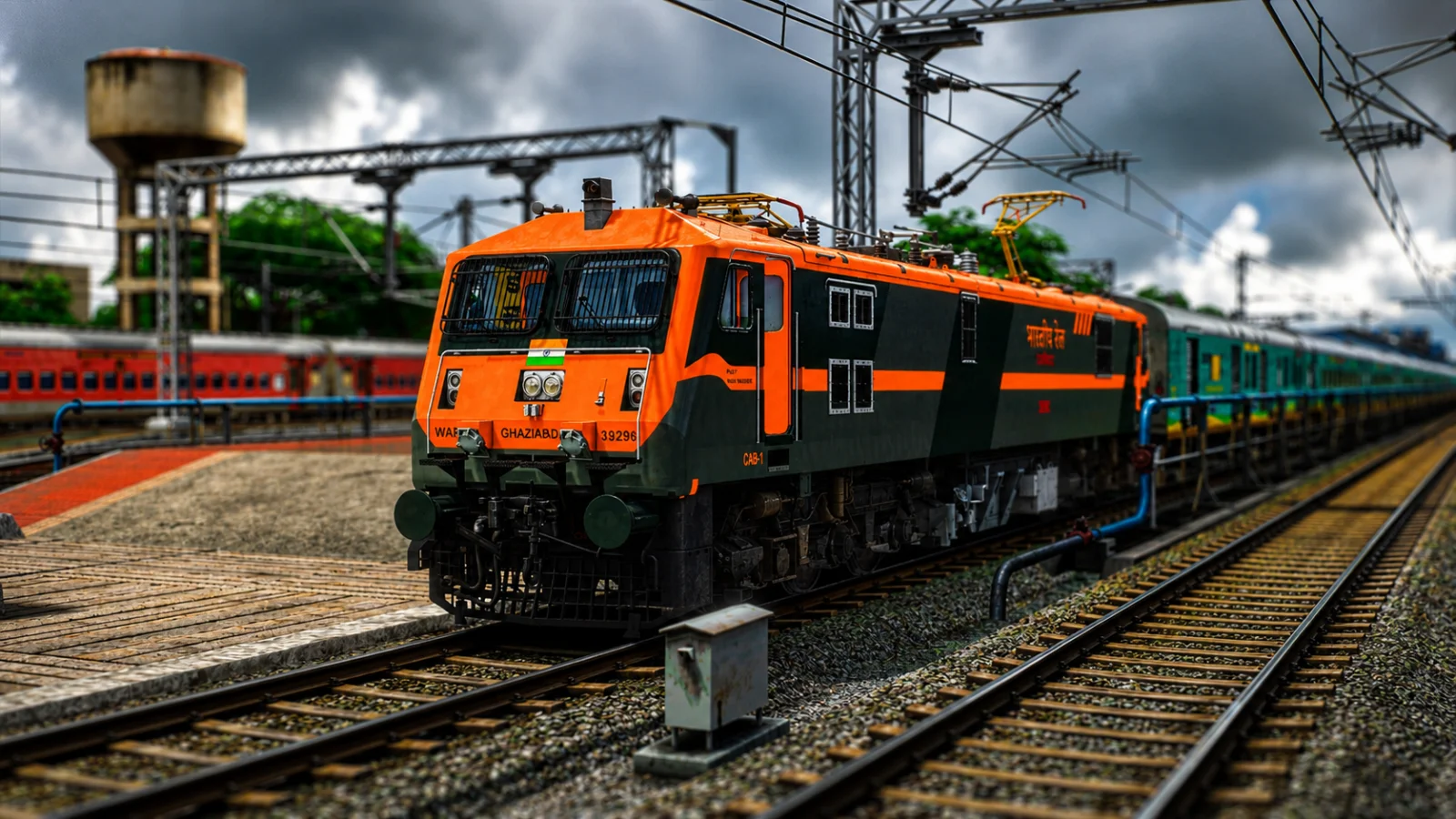
Take charge of Train 22706 Jammu Tawi–Tirupati Humsafar Express in an action-packed two-part premium scenario created by AAJ SE GAMER.
This free premium scenario places you in the role of the loco pilot of the Jammu Tawi–Tirupati Humsafar Express. What begins as a demanding long-distance passenger operation soon develops into a challenging journey filled with heavy rail traffic, operational restrictions, signal checks and an unexpected rescue mission.
You will need to maintain control of your locomotive, observe signals carefully, manage speed restrictions and respond to changing railway conditions. Dense traffic and multiple train movements make the route feel active and realistic, while the rescue operation adds an exciting layer of action and responsibility.
The complete journey has been divided into Part 1 and Part 2 to provide a longer, more detailed and immersive gameplay experience. Complete Part 1 before continuing the operation in Part 2.
Scenario Highlights
Drive Train 22706 Jammu Tawi–Tirupati Humsafar Express
Complete scenario divided into Part 1 and Part 2
Heavy and realistic Indian Railways traffic
Special rescue operation performed by the loco pilot
Signal checks, speed restrictions and operational challenges
Action, adventure, suspense and railway realism
Multiple Indian passenger and freight train movements
Designed for Train Simulator Classic
Free premium scenario available through SIMADDA
Important: This scenario requires several third-party Indian Railways routes, locomotives, coaches and freight add-ons. Please install all required dependencies before launching the scenario.
Add the scenario to your account for free, install the required Indian Railways add-ons and experience one of the most thrilling Humsafar Express operations in Train Simulator Classic.
This free premium scenario places you in the role of the loco pilot of the Jammu Tawi–Tirupati Humsafar Express. What begins as a demanding long-distance passenger operation soon develops into a challenging journey filled with heavy rail traffic, operational restrictions, signal checks and an unexpected rescue mission.
You will need to maintain control of your locomotive, observe signals carefully, manage speed restrictions and respond to changing railway conditions. Dense traffic and multiple train movements make the route feel active and realistic, while the rescue operation adds an exciting layer of action and responsibility.
The complete journey has been divided into Part 1 and Part 2 to provide a longer, more detailed and immersive gameplay experience. Complete Part 1 before continuing the operation in Part 2.
Scenario Highlights
Drive Train 22706 Jammu Tawi–Tirupati Humsafar Express
Complete scenario divided into Part 1 and Part 2
Heavy and realistic Indian Railways traffic
Special rescue operation performed by the loco pilot
Signal checks, speed restrictions and operational challenges
Action, adventure, suspense and railway realism
Multiple Indian passenger and freight train movements
Designed for Train Simulator Classic
Free premium scenario available through SIMADDA
Important: This scenario requires several third-party Indian Railways routes, locomotives, coaches and freight add-ons. Please install all required dependencies before launching the scenario.
Add the scenario to your account for free, install the required Indian Railways add-ons and experience one of the most thrilling Humsafar Express operations in Train Simulator Classic.
Key Features
- check_circle IMPORTANT: Install all required routes, locomotives, coaches and freight packs before installing or playing the scenario.
- check_circle REQUIRED INDIAN RAILWAYS ADD-ONS:
- check_circle 1. FLG Add-ons
- check_circle 2. ISW Freight Pack
- check_circle 3. ISW SCR Route
- check_circle 4. ISW ICF Pack
- check_circle 5. ITS LHB Pack
- check_circle 6. ITS Humsafar & Duronto Pack
- check_circle HOW TO INSTALL THE RWP FILE:
- check_circle Step 1: Download the Files
- check_circle Add the free premium scenario to your SIMADDA account and download the supplied files.
- check_circle The complete scenario contains:
- check_circle Part 1
- check_circle Part 2
- check_circle Download both files for the complete gameplay experience.
- check_circle Step 2: Extract the Download
- check_circle Use WinRAR, 7-Zip or another extraction application to extract the downloaded ZIP or RAR folder.
- check_circle Locate the supplied .RWP file after extraction.
- check_circle Do not try to install the file directly from inside the compressed ZIP or RAR folder.
- check_circle Step 3: Open the Game Root Folder
- check_circle Locate the FLG or Train Simulator Classic icon on your desktop.
- check_circle Right-click the icon.
- check_circle Select Open File Location.
- check_circle The main Train Simulator Classic root folder will open.
- check_circle Step 4: Open Train Simulator Utilities
- check_circle Inside the game root folder, locate the file named:
- check_circle Utilities.exe
- check_circle Double-click Utilities.exe.
- check_circle The Train Simulator Utilities window will open.
- check_circle Step 5: Open Package Manager
- check_circle Inside the Train Simulator Utilities window, open the third tab named:
- check_circle Package Manager
- check_circle Click the Refresh button first.
- check_circle Wait until the installed package library has been refreshed completely.
- check_circle Step 6: Install the RWP File
- check_circle After the library refresh is complete, click the Install button.
- check_circle Browse to the location where the extracted scenario file has been saved.
- check_circle Select the required .RWP file.
- check_circle Click Open.
- check_circle An installation instruction or confirmation message will appear.
- check_circle Click OK to continue.
- check_circle The RWP package will now be installed automatically into the main Train Simulator Classic directory.
- check_circle Step 7: Install Both Parts
- check_circle If Part 1 and Part 2 are provided as separate RWP files, repeat the same installation process for the second file.
- check_circle Both parts must be installed for the complete scenario experience.
- check_circle Step 8: Launch the Game
- check_circle Close Train Simulator Utilities after the installation has finished.
- check_circle Launch Train Simulator Classic.
- check_circle Go to the Drive menu and open the relevant Standard or Career scenario section.
- check_circle The installed scenario should now appear inside the game.
- check_circle Start with:
- check_circle 22706 Jammu Tawi Tirupati Humsafar Express Part 1
- check_circle After completing Part 1, launch:
- check_circle 22706 Jammu Tawi Tirupati Humsafar Express Part 2
- check_circle Step 9: Clear the Game Cache if Required
- check_circle If the scenario does not appear after installation:
- check_circle Launch Train Simulator Classic.
- check_circle Open Settings.
- check_circle Go to Tools.
- check_circle Select Clear Cache.
- check_circle Allow the game to restart.
- check_circle Check the scenario menu again after the restart.
- check_circle IMPORTANT NOTES:
- check_circle Install every required FLG, ISW and ITS add-on before starting the scenario.
- check_circle Missing add-ons may cause invisible trains, missing coaches, missing locomotives, route loading errors or scenario failure.
- check_circle The ISW SCR Route provides the required route infrastructure.
- check_circle The FLG Add-ons, ISW Freight Pack, ISW ICF Pack, ITS LHB Pack and ITS Humsafar & Duronto Pack provide the locomotives, passenger coaches, freight stock and AI traffic used in the scenario.
- check_circle For the best performance, launch the 64-bit version of Train Simulator Classic because the scenario contains heavy rail traffic and several AI train movements.
System Requirements
Train Simulator Classic for Windows
A working and updated installation of Train Simulator Classic is required.
Required Indian Railways add-ons:
FLG Add-ons
ISW Freight Pack
ISW SCR Route
ISW ICF Pack
ITS LHB Pack
ITS Humsafar & Duronto Pack
Recommended:
64-bit version of Train Simulator Classic
Windows 10 or Windows 11
8 GB RAM minimum
16 GB RAM recommended
Sufficient free storage for the scenario and required add-ons
All required routes, locomotives and rolling stock installed correctly
Train Simulator Classic graphics settings adjusted according to your computer
A stable system is recommended because the scenario contains heavy rail traffic and multiple AI train movements.
A working and updated installation of Train Simulator Classic is required.
Required Indian Railways add-ons:
FLG Add-ons
ISW Freight Pack
ISW SCR Route
ISW ICF Pack
ITS LHB Pack
ITS Humsafar & Duronto Pack
Recommended:
64-bit version of Train Simulator Classic
Windows 10 or Windows 11
8 GB RAM minimum
16 GB RAM recommended
Sufficient free storage for the scenario and required add-ons
All required routes, locomotives and rolling stock installed correctly
Train Simulator Classic graphics settings adjusted according to your computer
A stable system is recommended because the scenario contains heavy rail traffic and multiple AI train movements.
Installation Guide
IMPORTANT: Install all required routes, locomotives, coaches and freight packs before installing or playing the scenario.
REQUIRED ADD-ONS:
1. FLG Add-ons
2. ISW Freight Pack
3. ISW SCR Route
4. ISW ICF Pack
5. ITS LHB Pack
6. ITS Humsafar & Duronto Pack
INSTALLATION PROCESS:
Step 1: Download the Scenario
Add the free premium scenario to your SIMADDA account.
Open your account downloads section and download both scenario files:
Part 1
Part 2
Both parts are required for the complete gameplay experience.
Step 2: Install the Required Indian Railways Add-ons
Before installing the scenario, confirm that all listed Indian Railways add-ons are installed.
The ISW SCR Route provides the route infrastructure required by the scenario.
The FLG Add-ons, ISW Freight Pack, ISW ICF Pack, ITS LHB Pack and ITS Humsafar & Duronto Pack provide the locomotives, passenger coaches, freight stock and other assets used by the player train and AI traffic.
Missing add-ons may cause invisible trains, missing coaches, scenario loading errors or a failure to start the scenario.
Step 3: Extract the Downloaded Files
Download both Part 1 and Part 2.
Use WinRAR, 7-Zip or another extraction application to extract the downloaded ZIP or RAR files.
Do not run the scenario directly from inside the compressed archive.
Step 4: Install the Scenario Package
If the downloaded package contains an RWP file:
Open the main Train Simulator Classic installation folder.
Run Utilities.exe.
Open the Package Manager tab.
Select Refresh.
Choose Install.
Browse to the downloaded RWP file and install it.
Repeat the process for both Part 1 and Part 2 if separate RWP files are provided.
If the downloaded package contains Assets and Content folders:
Copy the supplied Assets and Content folders.
Paste them inside your main RailWorks directory.
Allow Windows to merge the folders when prompted.
Do not delete or replace your complete existing Assets or Content folders.
The default Steam installation location is usually:
C:\Program Files (x86)\Steam\steamapps\common\RailWorks
Your installation location may be different if Steam is installed on another drive.
Step 5: Clear the Train Simulator Classic Cache
Launch Train Simulator Classic.
Open Settings.
Go to Tools.
Select Clear Cache.
Allow the game to restart.
Clearing the cache helps Train Simulator Classic recognise newly installed scenarios and assets.
Step 6: Launch Part 1
Open Train Simulator Classic.
Go to the Drive menu.
Open the Standard or Career scenario section, depending on where the scenario appears.
Select:
22706 Jammu Tawi Tirupati Humsafar Express Part 1
Start the scenario and carefully follow all instructions displayed during gameplay.
Step 7: Continue with Part 2
Complete Part 1 first.
After completing or reaching the designated ending point of Part 1, return to the scenario selection menu.
Select:
22706 Jammu Tawi Tirupati Humsafar Express Part 2
Part 2 continues the journey and includes further operational challenges and scenario events.
TROUBLESHOOTING:
If the scenario does not appear, clear the game cache and restart Train Simulator Classic.
If trains or coaches are invisible, verify that every required add-on has been installed.
If the scenario fails to load, check that the ISW SCR Route is installed correctly.
If an error mentions missing rolling stock, reinstall the relevant FLG, ISW or ITS pack.
If the game becomes slow, reduce graphics settings because the scenario includes heavy AI traffic.
For the best experience, use the 64-bit version of Train Simulator Classic.
REQUIRED ADD-ONS:
1. FLG Add-ons
2. ISW Freight Pack
3. ISW SCR Route
4. ISW ICF Pack
5. ITS LHB Pack
6. ITS Humsafar & Duronto Pack
INSTALLATION PROCESS:
Step 1: Download the Scenario
Add the free premium scenario to your SIMADDA account.
Open your account downloads section and download both scenario files:
Part 1
Part 2
Both parts are required for the complete gameplay experience.
Step 2: Install the Required Indian Railways Add-ons
Before installing the scenario, confirm that all listed Indian Railways add-ons are installed.
The ISW SCR Route provides the route infrastructure required by the scenario.
The FLG Add-ons, ISW Freight Pack, ISW ICF Pack, ITS LHB Pack and ITS Humsafar & Duronto Pack provide the locomotives, passenger coaches, freight stock and other assets used by the player train and AI traffic.
Missing add-ons may cause invisible trains, missing coaches, scenario loading errors or a failure to start the scenario.
Step 3: Extract the Downloaded Files
Download both Part 1 and Part 2.
Use WinRAR, 7-Zip or another extraction application to extract the downloaded ZIP or RAR files.
Do not run the scenario directly from inside the compressed archive.
Step 4: Install the Scenario Package
If the downloaded package contains an RWP file:
Open the main Train Simulator Classic installation folder.
Run Utilities.exe.
Open the Package Manager tab.
Select Refresh.
Choose Install.
Browse to the downloaded RWP file and install it.
Repeat the process for both Part 1 and Part 2 if separate RWP files are provided.
If the downloaded package contains Assets and Content folders:
Copy the supplied Assets and Content folders.
Paste them inside your main RailWorks directory.
Allow Windows to merge the folders when prompted.
Do not delete or replace your complete existing Assets or Content folders.
The default Steam installation location is usually:
C:\Program Files (x86)\Steam\steamapps\common\RailWorks
Your installation location may be different if Steam is installed on another drive.
Step 5: Clear the Train Simulator Classic Cache
Launch Train Simulator Classic.
Open Settings.
Go to Tools.
Select Clear Cache.
Allow the game to restart.
Clearing the cache helps Train Simulator Classic recognise newly installed scenarios and assets.
Step 6: Launch Part 1
Open Train Simulator Classic.
Go to the Drive menu.
Open the Standard or Career scenario section, depending on where the scenario appears.
Select:
22706 Jammu Tawi Tirupati Humsafar Express Part 1
Start the scenario and carefully follow all instructions displayed during gameplay.
Step 7: Continue with Part 2
Complete Part 1 first.
After completing or reaching the designated ending point of Part 1, return to the scenario selection menu.
Select:
22706 Jammu Tawi Tirupati Humsafar Express Part 2
Part 2 continues the journey and includes further operational challenges and scenario events.
TROUBLESHOOTING:
If the scenario does not appear, clear the game cache and restart Train Simulator Classic.
If trains or coaches are invisible, verify that every required add-on has been installed.
If the scenario fails to load, check that the ISW SCR Route is installed correctly.
If an error mentions missing rolling stock, reinstall the relevant FLG, ISW or ITS pack.
If the game becomes slow, reduce graphics settings because the scenario includes heavy AI traffic.
For the best experience, use the 64-bit version of Train Simulator Classic.
Technical Specifications
Primary Platform
Train Simulator Classic
Category
Scenarios
Subcategory
Career
Seller
AAJ SE GAMER
Developer Name
AAJ SE GAMER
Product SKU
ASG-FPS-22706-JTT-HMSF-P1P2
Version Release
1.0.0
System Requirements
Train Simulator Classic for Windows
A working and updated installation of Train Simulator Classic is required.
Required Indian Railways add-ons:
FLG Add-ons
ISW Freight Pack
ISW SCR Route
ISW ICF Pack
ITS LHB Pack
ITS Humsafar & Duronto Pack
Recommended:
64-bit version of Train Simulator Classic
Windows 10 or Windows 11
8 GB RAM minimum
16 GB RAM recommended
Sufficient free storage for the scenario and required add-ons
All required routes, locomotives and rolling stock installed correctly
Train Simulator Classic graphics settings adjusted according to your computer
A stable system is recommended because the scenario contains heavy rail traffic and multiple AI train movements.
A working and updated installation of Train Simulator Classic is required.
Required Indian Railways add-ons:
FLG Add-ons
ISW Freight Pack
ISW SCR Route
ISW ICF Pack
ITS LHB Pack
ITS Humsafar & Duronto Pack
Recommended:
64-bit version of Train Simulator Classic
Windows 10 or Windows 11
8 GB RAM minimum
16 GB RAM recommended
Sufficient free storage for the scenario and required add-ons
All required routes, locomotives and rolling stock installed correctly
Train Simulator Classic graphics settings adjusted according to your computer
A stable system is recommended because the scenario contains heavy rail traffic and multiple AI train movements.
Installation Guide
IMPORTANT: Install all required routes, locomotives, coaches and freight packs before installing or playing the scenario.
REQUIRED ADD-ONS:
1. FLG Add-ons
2. ISW Freight Pack
3. ISW SCR Route
4. ISW ICF Pack
5. ITS LHB Pack
6. ITS Humsafar & Duronto Pack
INSTALLATION PROCESS:
Step 1: Download the Scenario
Add the free premium scenario to your SIMADDA account.
Open your account downloads section and download both scenario files:
Part 1
Part 2
Both parts are required for the complete gameplay experience.
Step 2: Install the Required Indian Railways Add-ons
Before installing the scenario, confirm that all listed Indian Railways add-ons are installed.
The ISW SCR Route provides the route infrastructure required by the scenario.
The FLG Add-ons, ISW Freight Pack, ISW ICF Pack, ITS LHB Pack and ITS Humsafar & Duronto Pack provide the locomotives, passenger coaches, freight stock and other assets used by the player train and AI traffic.
Missing add-ons may cause invisible trains, missing coaches, scenario loading errors or a failure to start the scenario.
Step 3: Extract the Downloaded Files
Download both Part 1 and Part 2.
Use WinRAR, 7-Zip or another extraction application to extract the downloaded ZIP or RAR files.
Do not run the scenario directly from inside the compressed archive.
Step 4: Install the Scenario Package
If the downloaded package contains an RWP file:
Open the main Train Simulator Classic installation folder.
Run Utilities.exe.
Open the Package Manager tab.
Select Refresh.
Choose Install.
Browse to the downloaded RWP file and install it.
Repeat the process for both Part 1 and Part 2 if separate RWP files are provided.
If the downloaded package contains Assets and Content folders:
Copy the supplied Assets and Content folders.
Paste them inside your main RailWorks directory.
Allow Windows to merge the folders when prompted.
Do not delete or replace your complete existing Assets or Content folders.
The default Steam installation location is usually:
C:\Program Files (x86)\Steam\steamapps\common\RailWorks
Your installation location may be different if Steam is installed on another drive.
Step 5: Clear the Train Simulator Classic Cache
Launch Train Simulator Classic.
Open Settings.
Go to Tools.
Select Clear Cache.
Allow the game to restart.
Clearing the cache helps Train Simulator Classic recognise newly installed scenarios and assets.
Step 6: Launch Part 1
Open Train Simulator Classic.
Go to the Drive menu.
Open the Standard or Career scenario section, depending on where the scenario appears.
Select:
22706 Jammu Tawi Tirupati Humsafar Express Part 1
Start the scenario and carefully follow all instructions displayed during gameplay.
Step 7: Continue with Part 2
Complete Part 1 first.
After completing or reaching the designated ending point of Part 1, return to the scenario selection menu.
Select:
22706 Jammu Tawi Tirupati Humsafar Express Part 2
Part 2 continues the journey and includes further operational challenges and scenario events.
TROUBLESHOOTING:
If the scenario does not appear, clear the game cache and restart Train Simulator Classic.
If trains or coaches are invisible, verify that every required add-on has been installed.
If the scenario fails to load, check that the ISW SCR Route is installed correctly.
If an error mentions missing rolling stock, reinstall the relevant FLG, ISW or ITS pack.
If the game becomes slow, reduce graphics settings because the scenario includes heavy AI traffic.
For the best experience, use the 64-bit version of Train Simulator Classic.
REQUIRED ADD-ONS:
1. FLG Add-ons
2. ISW Freight Pack
3. ISW SCR Route
4. ISW ICF Pack
5. ITS LHB Pack
6. ITS Humsafar & Duronto Pack
INSTALLATION PROCESS:
Step 1: Download the Scenario
Add the free premium scenario to your SIMADDA account.
Open your account downloads section and download both scenario files:
Part 1
Part 2
Both parts are required for the complete gameplay experience.
Step 2: Install the Required Indian Railways Add-ons
Before installing the scenario, confirm that all listed Indian Railways add-ons are installed.
The ISW SCR Route provides the route infrastructure required by the scenario.
The FLG Add-ons, ISW Freight Pack, ISW ICF Pack, ITS LHB Pack and ITS Humsafar & Duronto Pack provide the locomotives, passenger coaches, freight stock and other assets used by the player train and AI traffic.
Missing add-ons may cause invisible trains, missing coaches, scenario loading errors or a failure to start the scenario.
Step 3: Extract the Downloaded Files
Download both Part 1 and Part 2.
Use WinRAR, 7-Zip or another extraction application to extract the downloaded ZIP or RAR files.
Do not run the scenario directly from inside the compressed archive.
Step 4: Install the Scenario Package
If the downloaded package contains an RWP file:
Open the main Train Simulator Classic installation folder.
Run Utilities.exe.
Open the Package Manager tab.
Select Refresh.
Choose Install.
Browse to the downloaded RWP file and install it.
Repeat the process for both Part 1 and Part 2 if separate RWP files are provided.
If the downloaded package contains Assets and Content folders:
Copy the supplied Assets and Content folders.
Paste them inside your main RailWorks directory.
Allow Windows to merge the folders when prompted.
Do not delete or replace your complete existing Assets or Content folders.
The default Steam installation location is usually:
C:\Program Files (x86)\Steam\steamapps\common\RailWorks
Your installation location may be different if Steam is installed on another drive.
Step 5: Clear the Train Simulator Classic Cache
Launch Train Simulator Classic.
Open Settings.
Go to Tools.
Select Clear Cache.
Allow the game to restart.
Clearing the cache helps Train Simulator Classic recognise newly installed scenarios and assets.
Step 6: Launch Part 1
Open Train Simulator Classic.
Go to the Drive menu.
Open the Standard or Career scenario section, depending on where the scenario appears.
Select:
22706 Jammu Tawi Tirupati Humsafar Express Part 1
Start the scenario and carefully follow all instructions displayed during gameplay.
Step 7: Continue with Part 2
Complete Part 1 first.
After completing or reaching the designated ending point of Part 1, return to the scenario selection menu.
Select:
22706 Jammu Tawi Tirupati Humsafar Express Part 2
Part 2 continues the journey and includes further operational challenges and scenario events.
TROUBLESHOOTING:
If the scenario does not appear, clear the game cache and restart Train Simulator Classic.
If trains or coaches are invisible, verify that every required add-on has been installed.
If the scenario fails to load, check that the ISW SCR Route is installed correctly.
If an error mentions missing rolling stock, reinstall the relevant FLG, ISW or ITS pack.
If the game becomes slow, reduce graphics settings because the scenario includes heavy AI traffic.
For the best experience, use the 64-bit version of Train Simulator Classic.
5.0
★★★★★
2 Reviews
Loading reviews…
System Compatibility
check_circle
Train Simulator Classic
Listed platform
Train Simulator Classic for Windows
A working and updated installation of Train Simulator Classic is required.
Required Indian Railways add-ons:
FLG Add-ons
ISW Freight Pack
ISW SCR Route
ISW ICF Pack
ITS LHB Pack
ITS Humsafar & Duronto Pack
Recommended:
64-bit version of Train Simulator Classic
Windows 10 or Windows 11
8 GB RAM minimum
16 GB RAM recommended
Sufficient free storage for the scenario and required add-ons
All required routes, locomotives and rolling stock installed correctly
Train Simulator Classic graphics settings adjusted according to your computer
A stable system is recommended because the scenario contains heavy rail traffic and multiple AI train movements.
Installation Guide
IMPORTANT: Install all required routes, locomotives, coaches and freight packs before installing or playing the scenario.
REQUIRED ADD-ONS:
1. FLG Add-ons
2. ISW Freight Pack
3. ISW SCR Route
4. ISW ICF Pack
5. ITS LHB Pack
6. ITS Humsafar & Duronto Pack
INSTALLATION PROCESS:
Step 1: Download the Scenario
Add the free premium scenario to your SIMADDA account.
Open your account downloads section and download both scenario files:
Part 1
Part 2
Both parts are required for the complete gameplay experience.
Step 2: Install the Required Indian Railways Add-ons
Before installing the scenario, confirm that all listed Indian Railways add-ons are installed.
The ISW SCR Route provides the route infrastructure required by the scenario.
The FLG Add-ons, ISW Freight Pack, ISW ICF Pack, ITS LHB Pack and ITS Humsafar & Duronto Pack provide the locomotives, passenger coaches, freight stock and other assets used by the player train and AI traffic.
Missing add-ons may cause invisible trains, missing coaches, scenario loading errors or a failure to start the scenario.
Step 3: Extract the Downloaded Files
Download both Part 1 and Part 2.
Use WinRAR, 7-Zip or another extraction application to extract the downloaded ZIP or RAR files.
Do not run the scenario directly from inside the compressed archive.
Step 4: Install the Scenario Package
If the downloaded package contains an RWP file:
Open the main Train Simulator Classic installation folder.
Run Utilities.exe.
Open the Package Manager tab.
Select Refresh.
Choose Install.
Browse to the downloaded RWP file and install it.
Repeat the process for both Part 1 and Part 2 if separate RWP files are provided.
If the downloaded package contains Assets and Content folders:
Copy the supplied Assets and Content folders.
Paste them inside your main RailWorks directory.
Allow Windows to merge the folders when prompted.
Do not delete or replace your complete existing Assets or Content folders.
The default Steam installation location is usually:
C:\Program Files (x86)\Steam\steamapps\common\RailWorks
Your installation location may be different if Steam is installed on another drive.
Step 5: Clear the Train Simulator Classic Cache
Launch Train Simulator Classic.
Open Settings.
Go to Tools.
Select Clear Cache.
Allow the game to restart.
Clearing the cache helps Train Simulator Classic recognise newly installed scenarios and assets.
Step 6: Launch Part 1
Open Train Simulator Classic.
Go to the Drive menu.
Open the Standard or Career scenario section, depending on where the scenario appears.
Select:
22706 Jammu Tawi Tirupati Humsafar Express Part 1
Start the scenario and carefully follow all instructions displayed during gameplay.
Step 7: Continue with Part 2
Complete Part 1 first.
After completing or reaching the designated ending point of Part 1, return to the scenario selection menu.
Select:
22706 Jammu Tawi Tirupati Humsafar Express Part 2
Part 2 continues the journey and includes further operational challenges and scenario events.
TROUBLESHOOTING:
If the scenario does not appear, clear the game cache and restart Train Simulator Classic.
If trains or coaches are invisible, verify that every required add-on has been installed.
If the scenario fails to load, check that the ISW SCR Route is installed correctly.
If an error mentions missing rolling stock, reinstall the relevant FLG, ISW or ITS pack.
If the game becomes slow, reduce graphics settings because the scenario includes heavy AI traffic.
For the best experience, use the 64-bit version of Train Simulator Classic.
REQUIRED ADD-ONS:
1. FLG Add-ons
2. ISW Freight Pack
3. ISW SCR Route
4. ISW ICF Pack
5. ITS LHB Pack
6. ITS Humsafar & Duronto Pack
INSTALLATION PROCESS:
Step 1: Download the Scenario
Add the free premium scenario to your SIMADDA account.
Open your account downloads section and download both scenario files:
Part 1
Part 2
Both parts are required for the complete gameplay experience.
Step 2: Install the Required Indian Railways Add-ons
Before installing the scenario, confirm that all listed Indian Railways add-ons are installed.
The ISW SCR Route provides the route infrastructure required by the scenario.
The FLG Add-ons, ISW Freight Pack, ISW ICF Pack, ITS LHB Pack and ITS Humsafar & Duronto Pack provide the locomotives, passenger coaches, freight stock and other assets used by the player train and AI traffic.
Missing add-ons may cause invisible trains, missing coaches, scenario loading errors or a failure to start the scenario.
Step 3: Extract the Downloaded Files
Download both Part 1 and Part 2.
Use WinRAR, 7-Zip or another extraction application to extract the downloaded ZIP or RAR files.
Do not run the scenario directly from inside the compressed archive.
Step 4: Install the Scenario Package
If the downloaded package contains an RWP file:
Open the main Train Simulator Classic installation folder.
Run Utilities.exe.
Open the Package Manager tab.
Select Refresh.
Choose Install.
Browse to the downloaded RWP file and install it.
Repeat the process for both Part 1 and Part 2 if separate RWP files are provided.
If the downloaded package contains Assets and Content folders:
Copy the supplied Assets and Content folders.
Paste them inside your main RailWorks directory.
Allow Windows to merge the folders when prompted.
Do not delete or replace your complete existing Assets or Content folders.
The default Steam installation location is usually:
C:\Program Files (x86)\Steam\steamapps\common\RailWorks
Your installation location may be different if Steam is installed on another drive.
Step 5: Clear the Train Simulator Classic Cache
Launch Train Simulator Classic.
Open Settings.
Go to Tools.
Select Clear Cache.
Allow the game to restart.
Clearing the cache helps Train Simulator Classic recognise newly installed scenarios and assets.
Step 6: Launch Part 1
Open Train Simulator Classic.
Go to the Drive menu.
Open the Standard or Career scenario section, depending on where the scenario appears.
Select:
22706 Jammu Tawi Tirupati Humsafar Express Part 1
Start the scenario and carefully follow all instructions displayed during gameplay.
Step 7: Continue with Part 2
Complete Part 1 first.
After completing or reaching the designated ending point of Part 1, return to the scenario selection menu.
Select:
22706 Jammu Tawi Tirupati Humsafar Express Part 2
Part 2 continues the journey and includes further operational challenges and scenario events.
TROUBLESHOOTING:
If the scenario does not appear, clear the game cache and restart Train Simulator Classic.
If trains or coaches are invisible, verify that every required add-on has been installed.
If the scenario fails to load, check that the ISW SCR Route is installed correctly.
If an error mentions missing rolling stock, reinstall the relevant FLG, ISW or ITS pack.
If the game becomes slow, reduce graphics settings because the scenario includes heavy AI traffic.
For the best experience, use the 64-bit version of Train Simulator Classic.
Free Premium — Members Only
ASG FREE PREMIUM 22706 JAMMU TAWI TIRUPATI HUMSAFAR EXPRESS PART 1 & 2
- reviews
by AAJ SE GAMER
FREE
Free premium scenario — registered members only
palette Custom Addon
hd High Definition
file_download Digital Delivery
verified_user Lifetime Updates
lock Members Only
Free premium scenarios are for premium members. You must log in to claim this.